GitHub Copilot transforms how developers write code, yet many users barely scratch the surface of its powerful capabilities. Research quantifying GitHub Copilot’s impact in enterprise environments demonstrates its significant productivity benefits. Beyond basic code suggestions, Copilot offers numerous hidden features designed to accelerate development workflows.
November 2025 brought exciting developments with the general availability of Visual Studio 2026 and new Copilot actions that further enhance developer productivity. These updates include accessing Copilot actions directly from your context menu to generate code comments, explanations, and optimizations with just one click. Furthermore, the new GitHub cloud agent in public preview allows us to delegate repetitive tasks directly from Visual Studio.
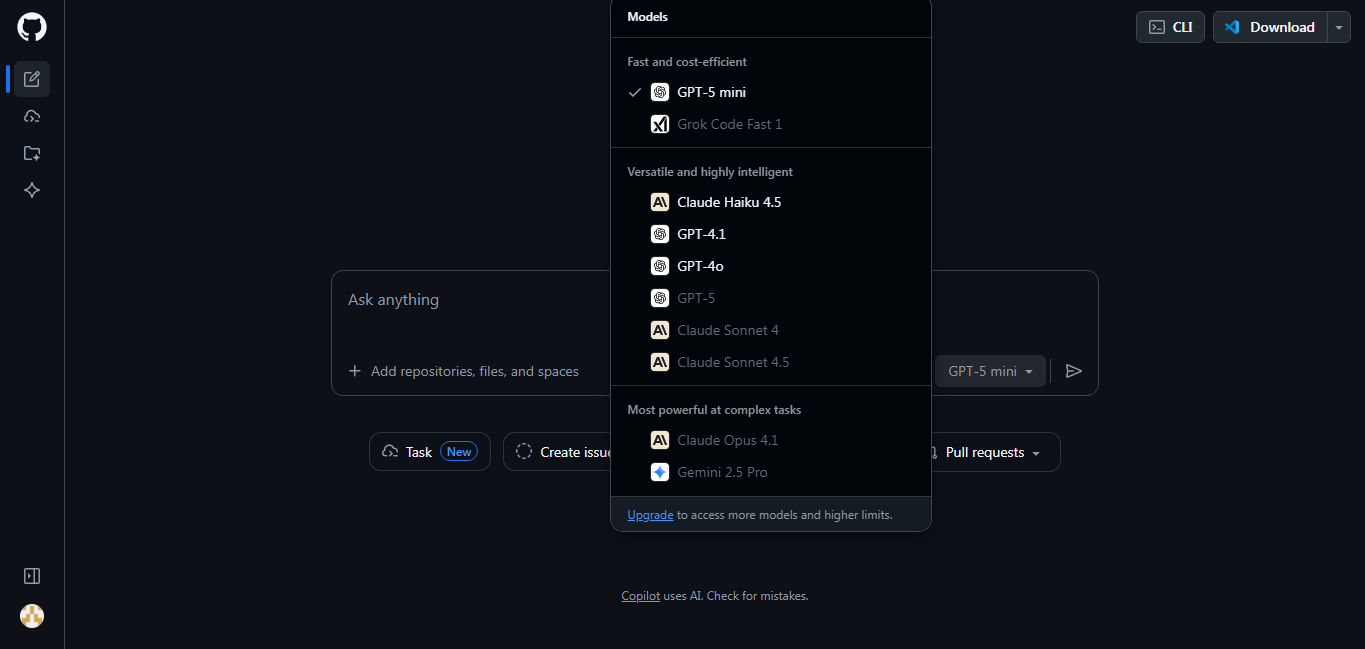
You can access Github’s Copilot with many othwer AI models from here
In this article, we’ll explore the lesser-known features of GitHub Copilot that significantly improve coding efficiency. From Copilot Chat’s natural language capabilities to CLI automation, advanced agent functionality, and hidden productivity settings, we’ll uncover the tools that experienced developers use to maximize their output. Whether you’re using the free version or GitHub Copilot Pro, these techniques will help you leverage Copilot’s full potential beyond standard code completion.
Copilot Chat: More Than Just Code Suggestions
Copilot Chat elevates the GitHub Copilot experience beyond basic code completion, offering an interactive AI assistant directly within your development environment. This conversational interface excels at understanding context and providing nuanced assistance for a range of coding tasks.
Inline Explanations for Complex Code Blocks
When faced with challenging code, Copilot Chat provides instant, contextual explanations without leaving your editor. Simply press Ctrl+I to trigger the inline chat directly alongside your code. This creates a seamless experience where you can immediately apply suggestions or request clarification.
Inline chat differs from the standard chat window by focusing specifically on the code you’re actively editing. This context-awareness enables Copilot to offer more precise assistance, such as:
-
Detailed analysis of how complex algorithms work
-
Identification of potential bugs and suggested fixes
-
Performance optimization recommendations
Moreover, Copilot can generate unit tests for your code and explain the reasoning behind them. For particularly tricky debugging scenarios, you can even attach screenshots of errors to provide additional context for more accurate solutions [1].
Natural Language Prompts for Refactoring
Natural language interaction represents one of Copilot Chat’s most powerful capabilities. Instead of memorizing complex refactoring commands, you can simply describe what you want to accomplish. For instance, typing “Add support for JSON output” or “Use a .env file for configuration” yields complete, contextually appropriate code changes [2].
Copilot Chat understands both general and specific requests. You can ask it to “make this code more efficient” or provide detailed instructions like “convert this function to use async/await instead of promises.” The system analyzes your codebase and responds with suggestions that align with your existing coding patterns and project structure.
Additionally, you can use slash commands like “/explain” to quickly access common development tasks without typing full sentences [3]. These commands expand into natural language prompts automatically, streamlining your workflow.
Multi-language Support in Copilot Chat
Copilot Chat excels at working with multiple programming languages. While it works especially well with Python, JavaScript, TypeScript, Ruby, Go, C#, and C++, it actually supports over 30 programming languages including Rust, Swift, and Kotlin [4].
Beyond programming languages, Copilot Chat can operate in numerous natural languages as well. The system supports over 30 different languages including English, Spanish, French, German, Japanese, Chinese, Arabic, and many others [5]. This multilingual capability means developers worldwide can interact with Copilot in their preferred language.
Notably, Copilot can even detect language switching during a conversation and dynamically adjust its responses to match, creating a truly flexible development assistant [6].
Copilot CLI: Speeding Up Terminal Workflows
Terminal workflows gain a new dimension with GitHub Copilot CLI, bringing AI assistance directly to your command line. This terminal-native tool eliminates context switching between your editor and terminal, enabling you to stay focused on your development tasks.
Command Autocompletion with Context Awareness
Copilot CLI understands your current environment, making its command suggestions remarkably relevant. Beyond standard tab completion, it recognizes the active shell and tailors recommendations accordingly. This context awareness means you’ll receive PowerShell-specific suggestions when working in PowerShell or Bash-appropriate commands in Unix environments.
The tool excels at translating commands between different shells. If you’re familiar with Unix commands but working in PowerShell, simply ask “What’s touch in PowerShell?” and Copilot CLI will suggest New-Item, explaining how it functions as the PowerShell equivalent. This capability proves invaluable for developers who regularly switch between environments.
Shell Script Generation from Natural Language
Perhaps the most impressive capability is transforming natural language descriptions into functional shell scripts. Rather than piecing together complex commands manually, you can describe what you need:
“Convert all videos in this folder to mp4 and resize them to 640px width” generates a complete script with proper syntax and parameters. Copilot CLI then explains what each part of the script does before execution, ensuring you understand the commands it’s about to run.
The tool can also handle complex multi-step tasks like finding files by size (“find all files bigger than 500mb and copy them to a folder called huge”) or automating Git workflows (“create a bash script to check for uncommitted changes and push if clean”).
Integration with GitHub Copilot Pro
Copilot CLI comes included with all Copilot Pro, Pro+, Business, and Enterprise subscriptions at no additional cost. It inherits your existing policies and requires explicit approval for all file changes and command executions, maintaining complete visibility and control over autonomous actions.
Setup requires minimal effort - installation via npm (npm install -g @github/copilot), authentication with your GitHub account, and you’re ready to leverage your existing Copilot subscription. The CLI maintains session persistence within and across terminal sessions, preserving context throughout your development workflow.
Copilot Agent: Automating Repetitive Dev Tasks
Automating routine development tasks stands as one of GitHub Copilot’s most underutilized strengths. The agent capabilities elevate Copilot from mere suggestion tool to autonomous coding assistant, handling tedious work while you focus on complex problems.
UI Cleanup and Refactor Suggestions
The Cleanup Specialist agent systematically improves codebases by removing dead code, eliminating duplication, and applying consistent formatting across both code and documentation files. This specialized agent identifies messy patterns and simplifies overly complex logic without compromising functionality. To use this feature, simply select code blocks and prompt Copilot to “move repeated calculations into functions” or “simplify this logic” - the agent then generates improved code that maintains existing functionality while enhancing readability.
Multi-file Edits with a Single Prompt
Copilot Edits enables comprehensive changes across your entire codebase through a single natural language instruction. Unlike standard suggestions, multi-file editing works autonomously to determine which files need modifications, applies changes, and handles error correction without constant supervision. Upon completion, you receive a clear summary highlighting affected files with inline diffs, allowing you to accept or reject changes with keyboard shortcuts (Tab to accept, Alt+Delete to reject).
Copilot Agent in Visual Studio 2026
Visual Studio 2026 introduces the groundbreaking Profiler Agent, essentially placing a performance engineer at your side. This agent analyzes CPU usage and memory allocations, identifies expensive bottlenecks, generates BenchmarkDotNet benchmarks, and suggests targeted optimizations - all from simple natural language prompts like “Why is my app slow?”
Hidden Productivity Boosters in Copilot Settings
Configuring GitHub Copilot’s settings unlocks hidden productivity features that most developers overlook. These simple adjustments can dramatically enhance your coding efficiency beyond the default experience.
Enabling Code Explanation in Context Menu
Right-click accessibility transforms how you interact with complex code. To enable code explanation directly from the context menu:
-
Select the code you want to understand
-
Right-click to open the context menu
-
Choose Copilot and select Explain
This feature instantly breaks down complex algorithms without disrupting your workflow. Alternatively, select code and type Explain selected code in the Copilot chat panel for the same functionality.
Customizing Prompt Behavior for Faster Output
Custom instructions allow GitHub Copilot to understand your preferred coding style. Create project-specific coding conventions by:
-
Defining arrow function preferences
-
Setting variable naming conventions
-
Specifying TypeScript typing requirements
Subsequently, these instructions automatically apply to all chat requests or specific file types. You can even switch between different AI models to optimize for speed, reasoning, or specialized tasks.
Using Copilot with VS Code Extensions
Extend Copilot’s capabilities through specialized tools from Marketplace extensions. These integrations enable:
-
Database querying directly from Copilot
-
External API connections
-
Customized assistance for framework-specific development
Hence, combining Copilot with complementary extensions creates a personalized development environment tailored to your specific workflow needs.
Conclusion
GitHub Copilot stands as a transformative tool that extends far beyond basic code completion. Throughout this article, we’ve explored several powerful capabilities that remain underutilized by most developers. Copilot Chat offers contextual assistance directly within your development environment, therefore saving valuable time previously spent searching for solutions elsewhere.
Additionally, the CLI integration brings AI-powered assistance to your terminal workflows, eliminating the need for constant context switching between applications. This feature particularly shines when generating complex shell scripts from simple natural language descriptions.
The agent functionality takes automation a step further by handling repetitive tasks across multiple files. Most compelling evidence shows that developers who use these advanced features report significant productivity gains, with some teams experiencing up to 55% faster coding speeds compared to traditional methods.
Furthermore, customizing Copilot settings unlocks even greater efficiency. The context menu explanations, personalized prompt behaviors, and VS Code extension integrations create a tailored development experience aligned with your specific workflow needs.
Undoubtedly, GitHub Copilot has evolved from a simple suggestion tool into a comprehensive coding partner. The features discussed today represent just a fraction of what’s possible with this technology. As the platform continues to develop, we expect to see even more innovative capabilities emerge.
The next time you open your development environment, consider exploring these hidden features. Your productivity will thank you as you discover new ways to delegate routine tasks while focusing your expertise on solving complex problems. After all, Copilot doesn’t aim to replace developers but rather amplifies their capabilities through intelligent collaboration.
FAQs
-
How does GitHub Copilot Chat differ from standard code suggestions?
GitHub Copilot Chat offers an interactive AI assistant within your development environment. It provides contextual explanations, natural language refactoring, and supports multiple programming and natural languages, making it a more versatile tool for complex coding tasks.
-
What are some hidden productivity features in GitHub Copilot’s settings?
Some hidden productivity features include enabling code explanation in the context menu, customizing prompt behavior for faster output, and integrating Copilot with VS Code extensions. These settings can significantly enhance coding efficiency beyond the default experience.
-
How can GitHub Copilot CLI improve terminal workflows?
GitHub Copilot CLI brings AI assistance to the command line, offering context-aware command autocompletion, shell script generation from natural language prompts, and seamless integration with GitHub Copilot Pro. This tool helps developers stay focused on their tasks without switching between editor and terminal.
-
What is the Copilot Agent and how does it automate development tasks?
The Copilot Agent is an autonomous coding assistant that handles repetitive tasks. It can perform UI cleanup and refactoring, execute multi-file edits with a single prompt, and in Visual Studio 2026, it includes a Profiler Agent for performance optimization. These features allow developers to focus on more complex problems.
-
How can developers maximize their productivity with GitHub Copilot?
To maximize productivity, developers can utilize features like Copilot Chat for inline explanations and refactoring, leverage the CLI for terminal workflows, use the Agent for automating repetitive tasks, and customize Copilot settings. Additionally, exploring integrations with VS Code extensions and staying updated with new features can further enhance efficiency.
All this information is Open-Source and also avaliable at Github’s Copilot’s official site, you can also get more deeper information from here.
Frequently Asked Questions
How does GitHub Copilot Chat differ from standard code suggestions?
GitHub Copilot Chat offers an interactive AI assistant within your development environment. It provides contextual explanations, natural language refactoring, and supports multiple programming and natural languages, making it a more versatile tool for complex coding tasks.
What are some hidden productivity features in GitHub Copilot's settings?
Some hidden productivity features include enabling code explanation in the context menu, customizing prompt behavior for faster output, and integrating Copilot with VS Code extensions. These settings can significantly enhance coding efficiency beyond the default experience.
How can GitHub Copilot CLI improve terminal workflows?
GitHub Copilot CLI brings AI assistance to the command line, offering context-aware command autocompletion, shell script generation from natural language prompts, and seamless integration with GitHub Copilot Pro. This tool helps developers stay focused on their tasks without switching between editor and terminal.
What is the Copilot Agent and how does it automate development tasks?
The Copilot Agent is an autonomous coding assistant that handles repetitive tasks. It can perform UI cleanup and refactoring, execute multi-file edits with a single prompt, and in Visual Studio 2026, it includes a Profiler Agent for performance optimization. These features allow developers to focus on more complex problems.
How can developers maximize their productivity with GitHub Copilot?
To maximize productivity, developers can utilize features like Copilot Chat for inline explanations and refactoring, leverage the CLI for terminal workflows, use the Agent for automating repetitive tasks, and customize Copilot settings. Additionally, exploring integrations with VS Code extensions and staying updated with new features can further enhance efficiency.